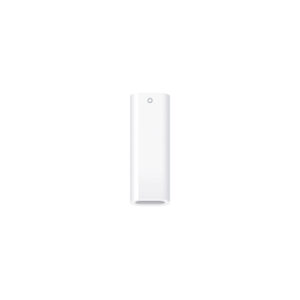
The USB-C to Apple Pencil Adapter is required to pair and charge Apple Pencil (1st generation) with iPad (A16) and iPad (10th generation). Your Apple Pencil plugs into one end of the adapter and the USB-C Charge Cable from your iPad plugs into the other.
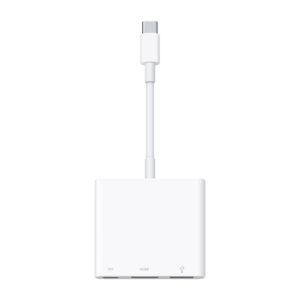
The USB-C Digital AV Multiport Adapter lets you connect your USB-C–enabled Mac, iPad, or iPhone to an HDMI display, while also connecting a standard USB device and a USB-C charging cable.
This adapter allows you to mirror your USB-C–enabled Mac, iPad, or iPhone to your HDMI-enabled TV or display.
3840x2160 at 60Hz on:
iPhone 17, iPhone 17 Pro, iPhone 17 Pro Max, iPhone 16, iPhone 16 Plus, iPhone 16 Pro, iPhone 16 Pro Max, iPhone 15, iPhone 15 Plus, iPhone 15 Pro, iPhone 15 Pro Max, iPad Pro 13‑inch (M5), iPad Pro 11‑inch (M5), iPad Pro 13‑inch (M4), iPad Pro 11‑inch (M4), iPad Air 13‑inch (M3), iPad Air 11‑inch (M3), iPad Air 13‑inch (M2), iPad Air 11‑inch (M2), iPad Air (5th generation), iPad Pro 11‑inch (4th generation), iPad Pro 12.9‑inch (3rd generation and later), MacBook Pro (16‑inch, 2019), MacBook Pro (15‑inch, 2017 and later), MacBook Pro (13‑inch, four Thunderbolt 3 ports, 2020), MacBook Air (2020), iMac (Retina 5K, 27‑inch, 2017 and later), iMac (Retina 4K, 21.5‑inch, 2017 and later), and iMac Pro (2017 and later).
1080p at 60Hz or UHD (3840 by 2160) at 30Hz on:
iPad Air (4th generation), MacBook Air (2018 and later), MacBook Pro (13-inch, 2016 and later), MacBook Pro (15-inch, 2016), iMac (non-Retina, 21.5‑inch, 2017), and Mac mini (2018)
Simply connect the adapter to a USB-C or Thunderbolt 3 (USB-C) connector on your Mac, iPad, or iPhone and then to your TV or projector via an HDMI cable (sold separately).
Use the standard USB port to connect devices such as your flash drive or camera or a USB cable for syncing and charging your iOS devices. You can also connect a charging cable to the USB-C port to charge your Mac, iPad, or iPhone.
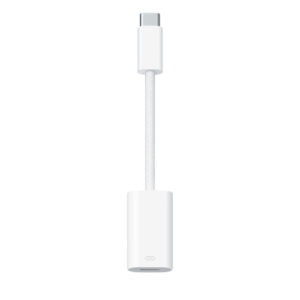
The USB-C to Lightning Adapter lets you connect your Lightning accessories to a USB-C–enabled iPhone or iPad to conveniently provide three key functions — charging, data, and audio — with a single adapter. This adapter has a braided cable for added durability.
Plug the USB-C end of the adapter into the USB-C connector on your iPhone or iPad, then connect your Lightning accessory.
This adapter supports connection to most cars including those that work with CarPlay. You can also directly connect a USB cable from your car into the USB-C connector on your iPhone.


 د.إ 130